October 2022 Release Notes
New features added to Somnoware in addition to the continuous optimization of existing capabilities and performance improvements:
Key Features:
- Newly released Physician Preference Module.
- Check-in low-quality or corrupted (bad) data from the scheduler.
- ApneaLink - Provide select study option before automated Check-In.
- ApneaLink - Set short duration study limit for check-in.
- ApneaLink - Import PSG improvement for physician workflow.
Details:
Physician preference module
- Somnoware released Physician preference module where the Physicians can edit their interpretation report templates.
- Preference module can be accessed from the PSM list page and the Interpretation page.
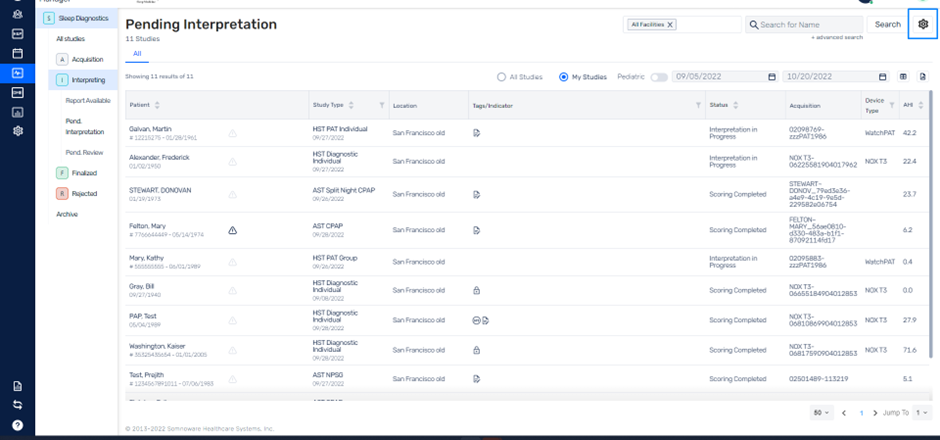
- Physician preference has 3 tabs: Parameters, Default report builder, and Custom builder.
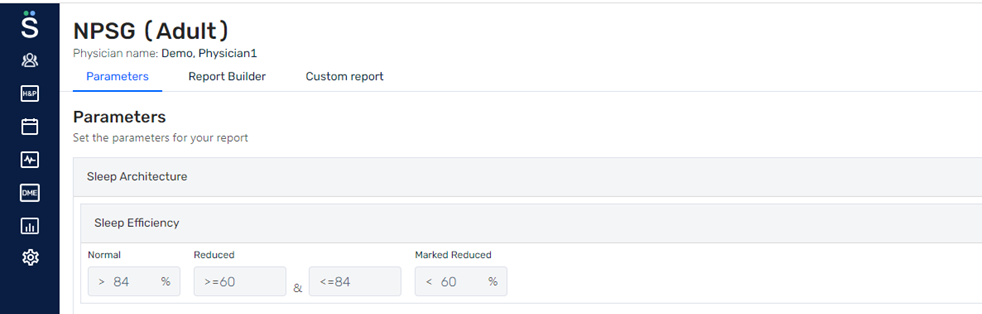
• The header part has a filter to select study types. Also, Physicians can switch between Adult and Pediatric templates for each study types.
• The first tab is the Parameters section where the threshold can be saved for each study types. The Impression section in the interpretation report uses this logic to display the values.
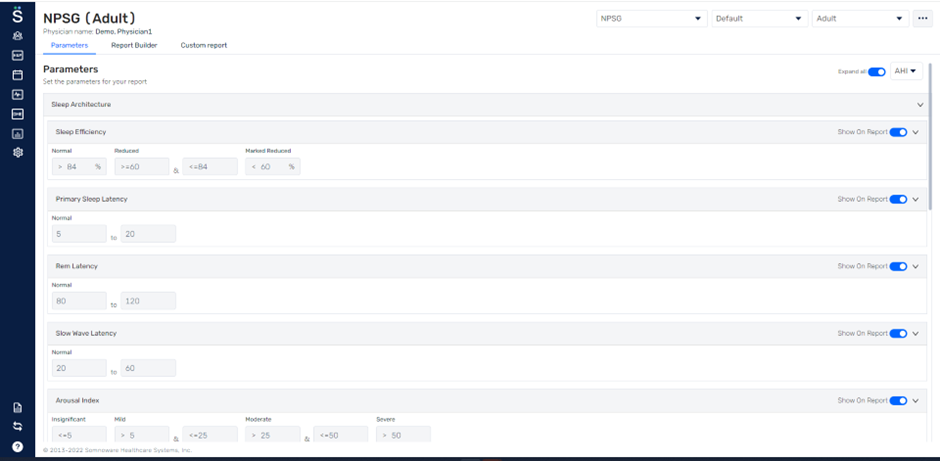
- Each parameter is shown in an accordion where it can be expanded or collapsed. The accordion has a toggle bar, if enabled it will be shown in the report. If disabled, the report will not show that value.
- The next tab is the default Report builder. It has different report sections on the left side of the page like Demographics, Clinical information, Sleep study techniques, Sleep architecture, Respiratory parameters, Impressions, Diagnosis, Recommendations, etc.

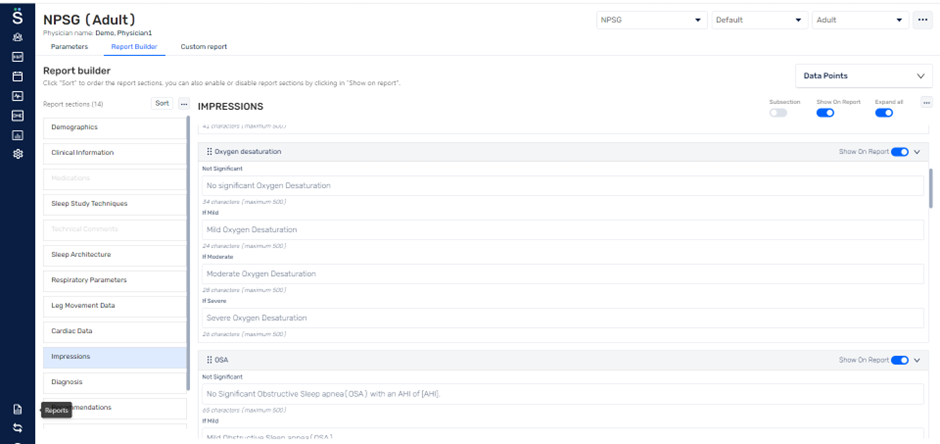
- These sections can be enabled or disabled at the top. If disabled, it will not be shown in the report.

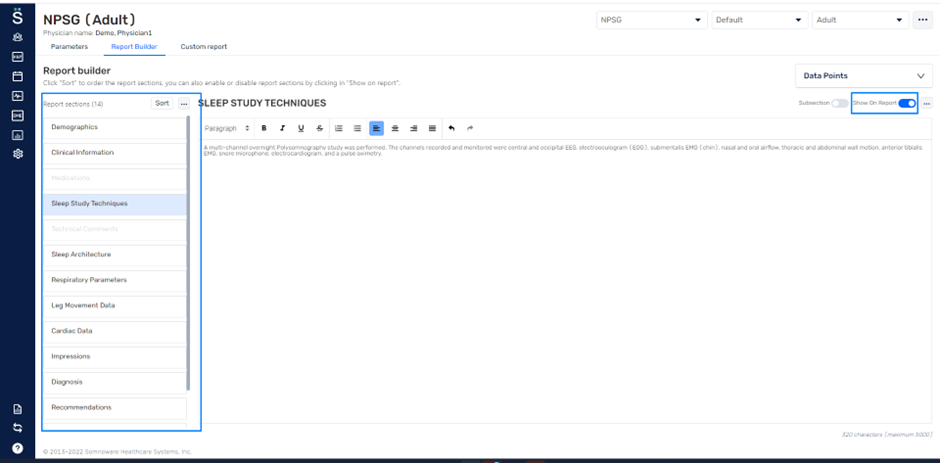
- Data points can be accessed from here to build the report templates. The data points will be replaced with the study values when the report is generated.
- Narrative report templates can be built in these sections using the data points. These templates are used for generating the interpretation reports.
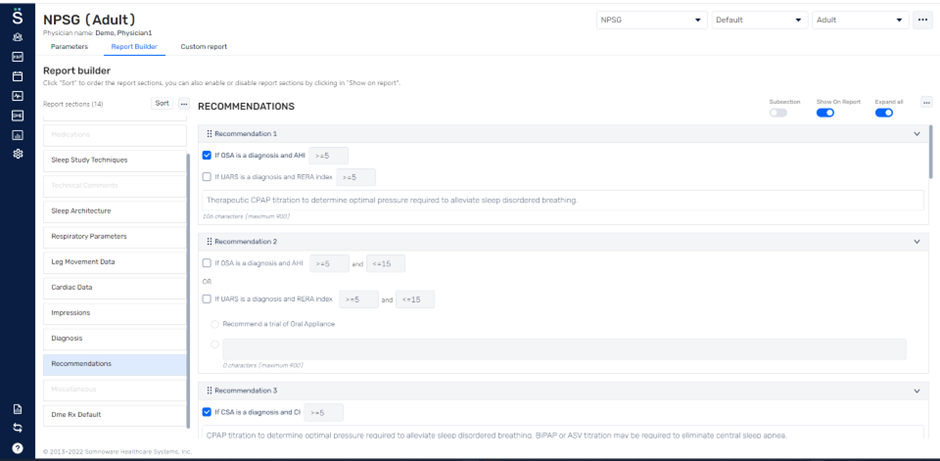
- Impression, Diagnosis, and Recommendation sections show data based on saved logic and parameters.
- Diagnosis is displayed in the report based on the thresholds saved in the Diagnosis section.

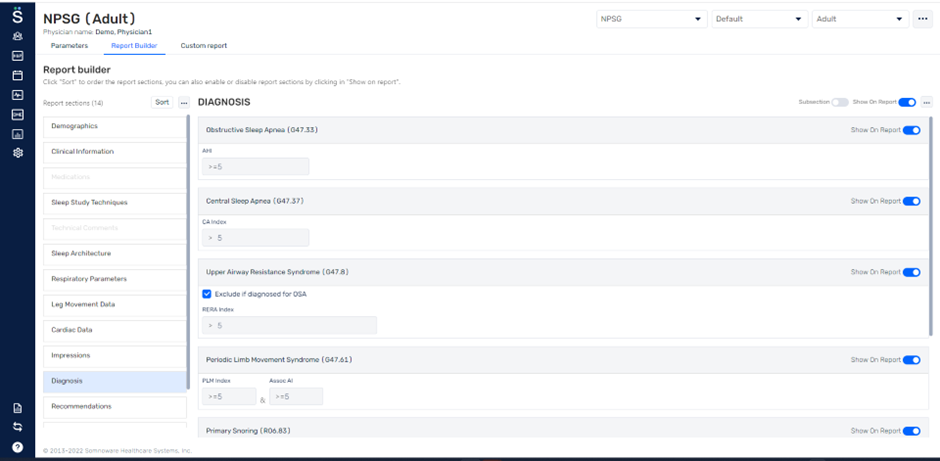
- The Impression section displays data based on the thresholds saved in the parameters section. Physicians can also add custom impression statements.
- The Recommendation section also has parameters that can be saved and based on the saved logic, the data is pulled into the report.

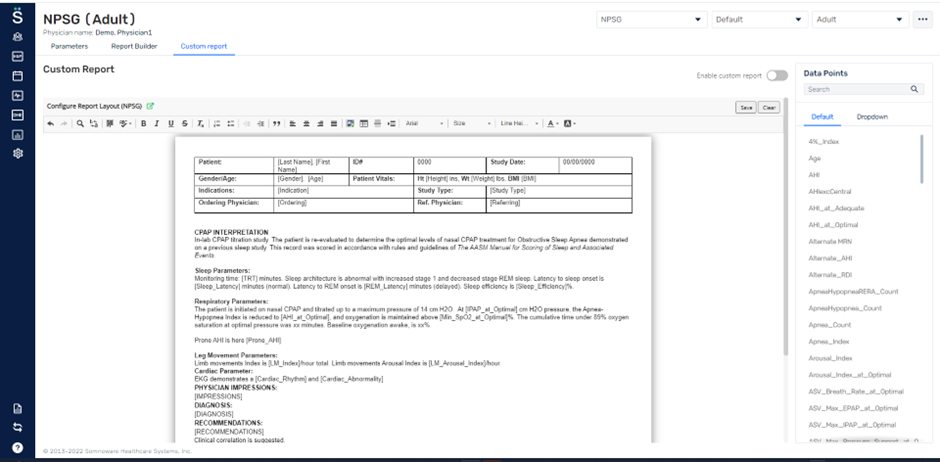
- Physicians can also enable the Custom report builder if required. The custom report builder contains one in-line editor. Data points can be accessed from here to build the template.

Check-in a device as bad data from the scheduler
- Implemented an option to check in a device as ‘Device not used/bad data’ from the scheduler.
- Click on a Pending check-in schedule to open the sidebar.
- Click on the Assign and upload button to upload the study. This will open a pop-up with the study acquisitions listed. Select the appropriate acquisition and click Upload.
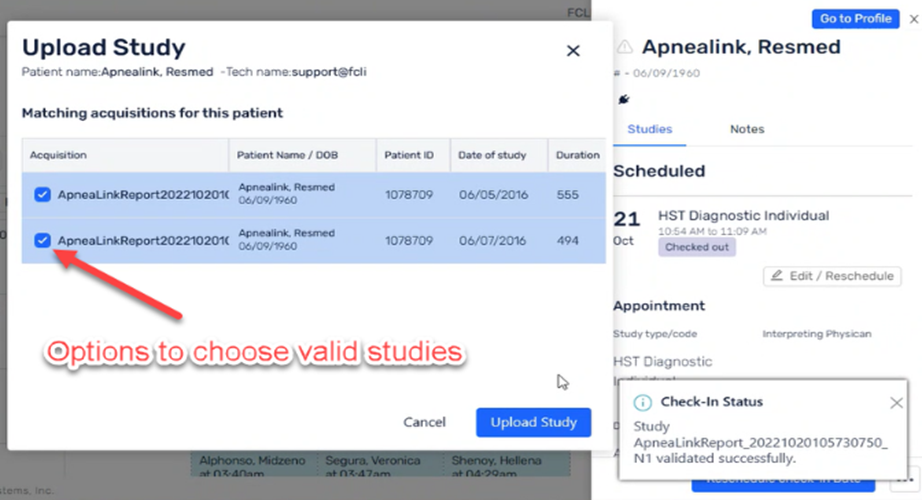
ApneaLink – New select study option before automated Check-In.
- We will have to enable a database flag against a particular facility to enable this flow.
- Once enabled, users will see an additional window after the automation process to select a valid study and complete check-In.
ApneaLink - Set short duration study limit for check-in.
- Users can set a custom duration to classify what is considered a valid study.
- Once the custom duration is set, studies less than the set time will be automatically excluded at the time of upload.
Apnealink – Import PSG improvement for Physician workflow.
- Have implemented backend improvements for Apnealink Import PSG workflow.